Dictation software for Mac
Hold one key and talk. Finished text lands in any Mac app.
- 99%+ accurate
- 3× faster than typing
- Every Mac app
Free to try. No card. Voice commands included.
Apple Silicon · macOS 14 or later · also on Windows
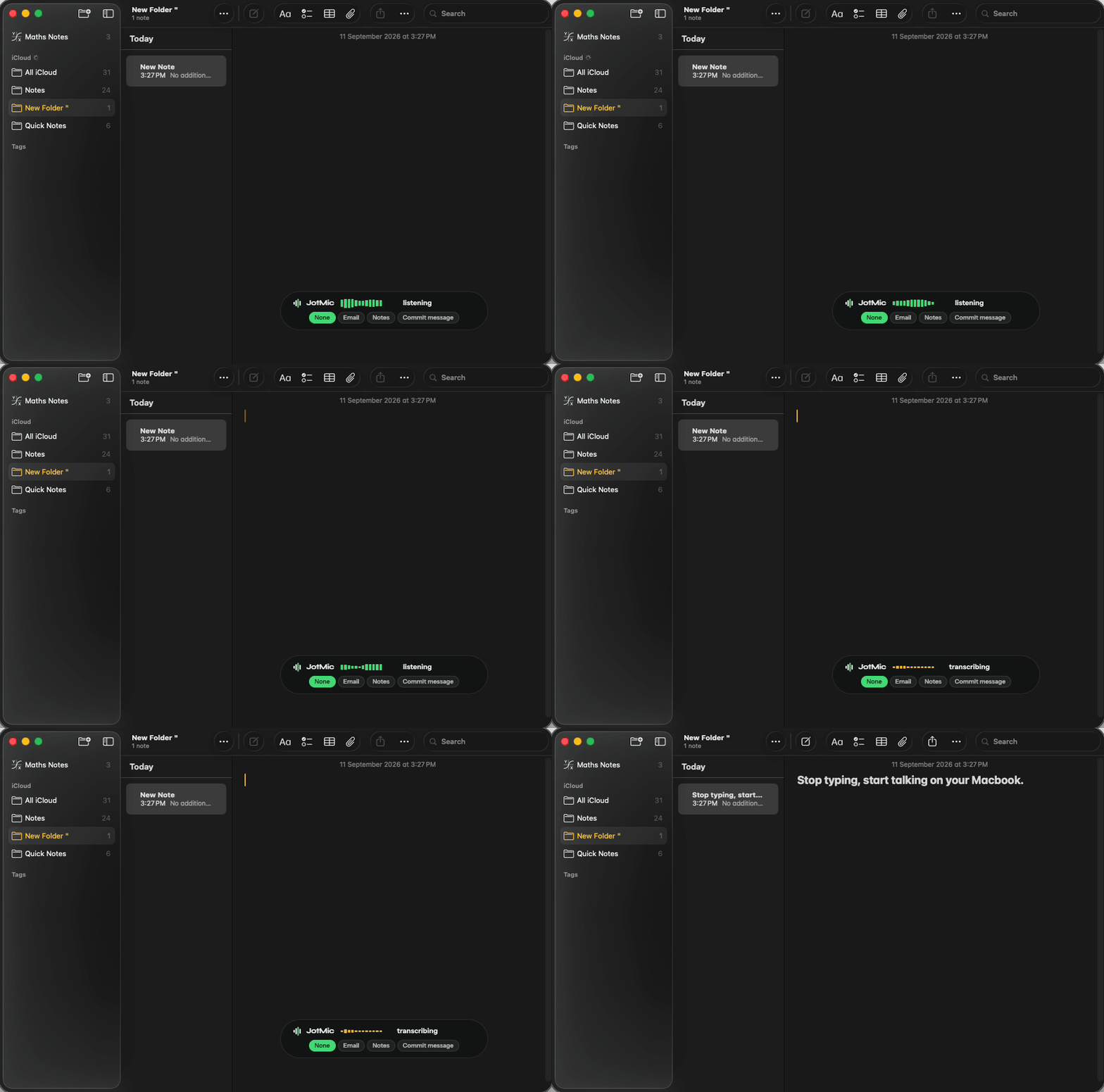
How does dictation work on a Mac?
Step one
Hold Right Option
It types nothing on its own, so you lose no shortcut. Rebind it if you prefer.
Step two
Talk normally
No saying the punctuation out loud. No cut-off when you pause to think.
Step three
Let go
Finished text lands at the cursor.
You talk at 150 words a minute. You type at 40.
Every reply, note and long email sits inside that gap. A better keyboard changes how typing feels, not how much of it there is.
If your hands are why you are here, dictation for hand pain is the page for it.
Why not just use Apple Dictation?
It is free and already on your Mac. Here is what it costs you.
| Feature | JotMic | Apple Dictation |
|---|---|---|
| Accuracy | 99%+ | ~85% |
| Ready to send | Fillers taken out | Every um typed in |
| Learns your words | Taught once | No way to teach it |
| Languages | 99+, picked up as you talk | One, set in Settings |
| Controls your apps | Any menu, any app | Types only |
| Transcribe recordings | Drop a file in | Live speech only |
What you stop going back to fix
99%+ accurate
Accents, a noisy room and the microphone in your laptop. 99+ languages, worked out as you talk.
Ready to send
Fillers and false starts out, commas and capitals in. Every other word as you said it.
Learns your words
Clients, colleagues, products and acronyms, taught once. Your list follows you to your PC.
Say it, and your Mac does it
- “New folder” in Finder, and a folder appears
- Open apps, switch between them, drive browser tabs
- Volume, brightness and media keys, by voice
Every menu item in every app is already a command, with no list to set up. See how voice commands work.
Free to try, no card. Voice commands included.
Works in every Mac app
It types at your cursor like a keyboard. Nothing to set up.
Plus Mail, Pages, Word, Xcode and every other app on your Mac.
Email and replies
The four-line reply you have been putting off, said in twenty seconds.
Notes and documents
Meeting notes, handovers and first drafts, punctuated as they land.
Slack, Messages and WhatsApp
Every message box on the machine, work and not.
Prompts and code
Long prompts are easy when you are not typing them. Any terminal, any editor.
To sam@northfield.co
Subject Thursday review
Hi Sam — is Thursday still good for the review? I’ll send the figures either way.
Staging build is up. Holding the migration until Thursday.
add a rate limiter to the upload endpoint, sixty a minute per user
Work that cannot leave your Mac
Nothing you dictate is stored or used for training. If the work cannot leave the building at all, it can run entirely on your own Mac instead — see offline dictation.
Set up in two minutes
- Microphone, so it can hear you
- Accessibility, so it can type where your cursor is
- Nothing else — no screen recording, no camera
The same account covers Windows 11.
Read next
Voice commands
Anything a Mac app can do, just say it.
Offline dictation
Dictating with the network switched off.
Dictation for hand arthritis
Typing less when your hands are the reason you are looking.
Compared with the other apps
On a Mac you are mostly choosing between this, Superwhisper and Wispr Flow. Dragon has had no Mac version since 2018.
Questions
Is this better than the dictation built into macOS?
Apple Dictation types what you say. JotMic edits it — the ums and false starts come out, so what lands is a finished sentence. It also learns your names and acronyms, which Apple Dictation cannot be taught, and it can act on what you say instead of only typing it.
Which version of macOS do I need?
macOS 14 or later.
What permissions does it ask for, and why?
Two. Microphone, so it can hear you. Accessibility, so it can type at your cursor. Nothing else — no screen recording and no camera are shipped at all.
Does it work in every Mac app?
Any app or website with a text box. It types at your cursor like a keyboard, so there is nothing to set up — Mail, Slack, Word, Pages, Xcode, Cursor, the terminal.
Which key do I hold?
Right Option by default. It types nothing on its own, so it costs you no shortcut. Change it to whichever key your hand rests near.
Can I use it on a Mac with no internet?
Yes, it can run entirely on your own Mac. It works best on a Mac with room to spare, and online is the default otherwise.
Do I have to say the punctuation out loud?
No. Full stops, commas, question marks and capitals come from the way you talk. They arrive already in place.
Does it change my wording?
It removes, it does not rewrite. Fillers and false starts come out, punctuation and capitals go in, every other word stays as you said it. One switch gives you the raw transcript.
Will it get names and technical terms right?
Add them to your vocabulary once and they keep landing correctly — colleagues, clients, libraries, products.
Does it work in other languages?
Yes, 99+. It works out which one you are speaking rather than making you set it each time.
Does it work on Apple Silicon and Intel?
Both, on macOS 14 or later. The one difference is custom vocabulary, which is Apple Silicon only for now.
Free to try, no card. A week of email, not one test sentence.